Once you create a schedule in DSHub, you are automatically taken to the Calendar View for that schedule.
This view lets you manage when your playlists or media will play, with options to switch between Day, Week, and Month views.
Calendar View Options
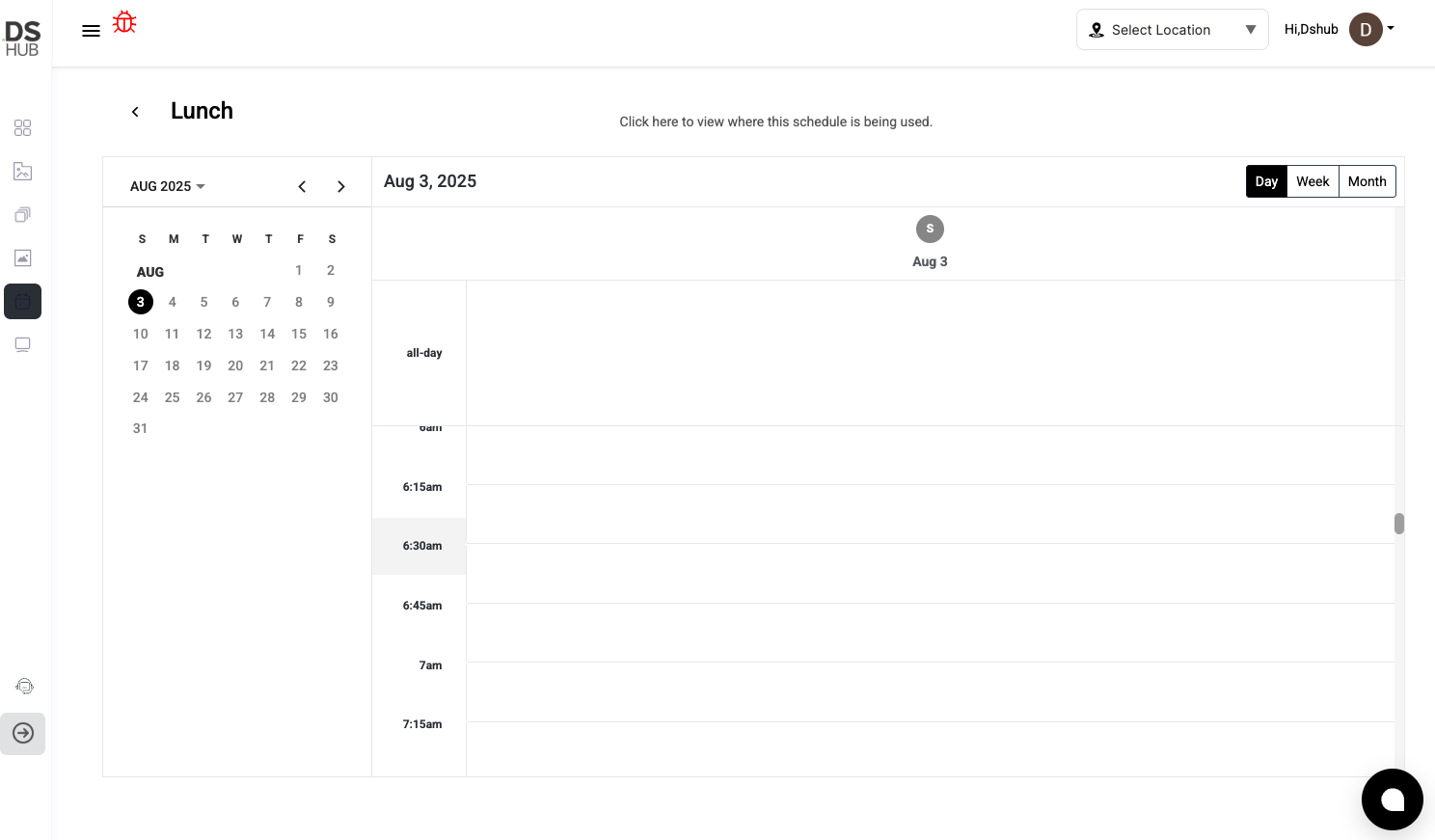
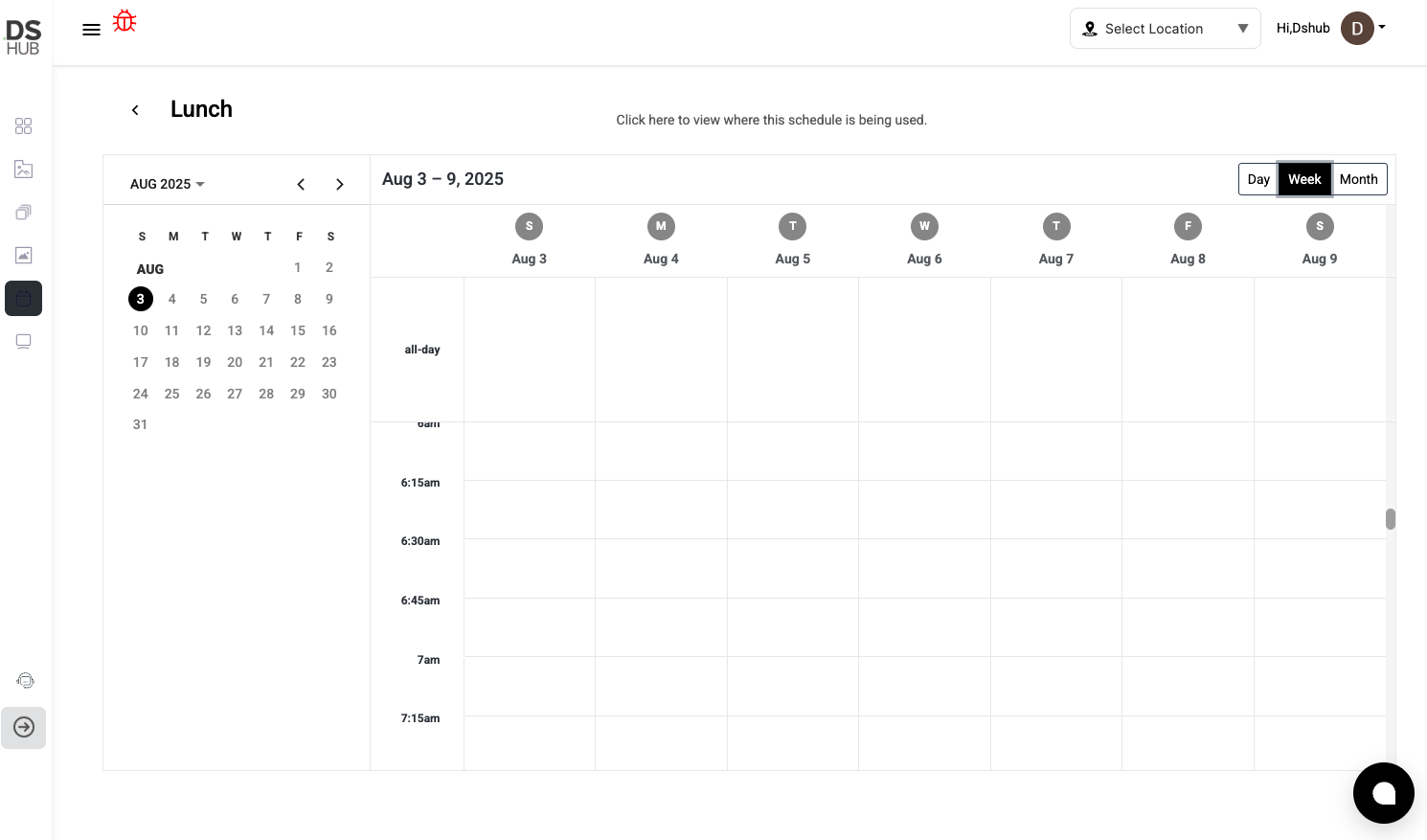
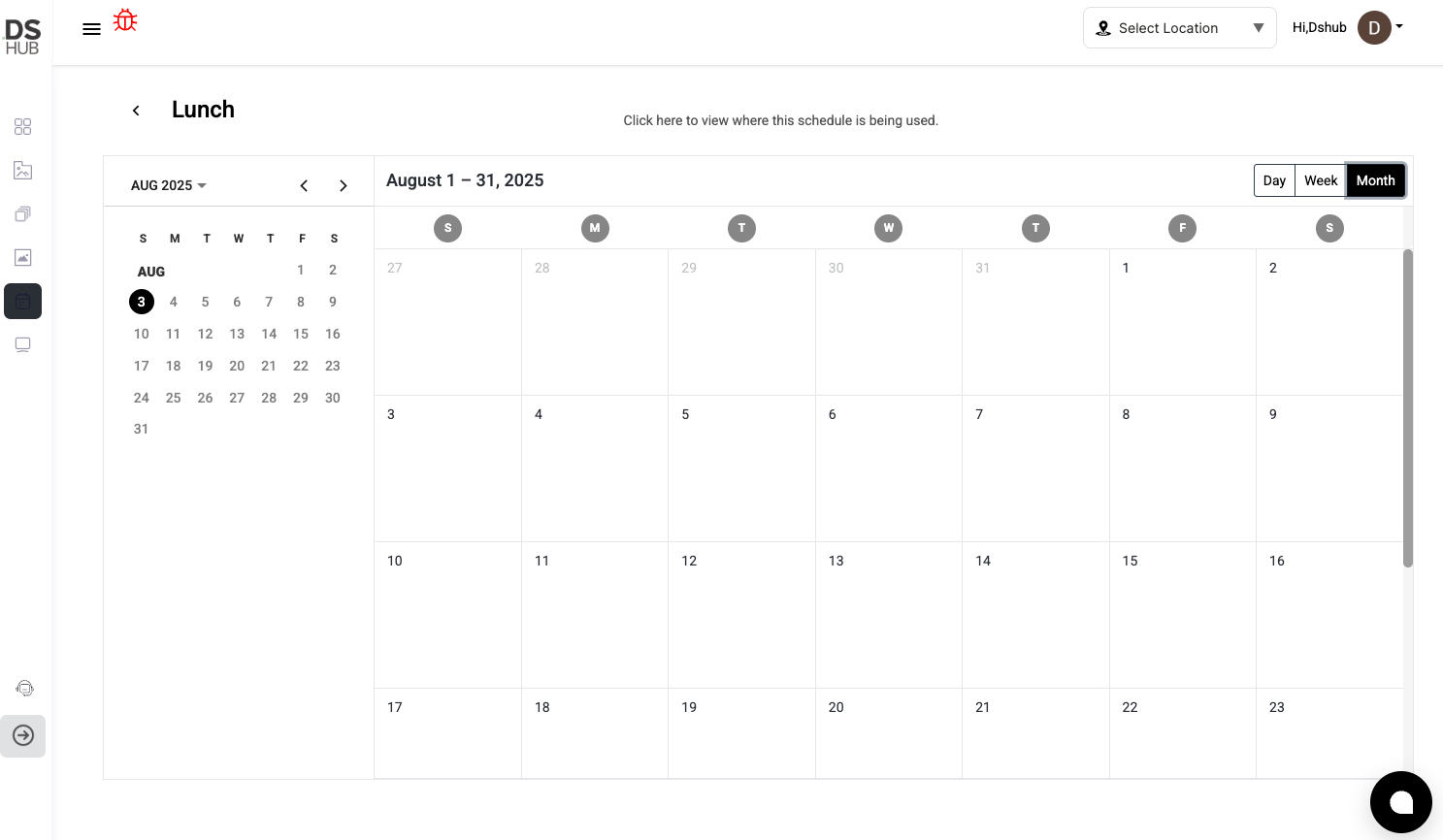
At the top-right of the calendar, you’ll see three buttons:
-
Day View: Shows a detailed hourly view for a single day, ideal for precise time-based scheduling.
-
Week View: Displays a 7-day overview, allowing quick adjustments across multiple days.
-
Month View: Provides a high-level overview of all scheduled items for the day
Viewing and Editing Scheduled Items
-
Scheduled items appear as blocks on the calendar.
-
Hover over any block to see details like the name, assigned screens, and time slots.
-
Click on a scheduled item to edit its details (e.g., timings, screens, or content).
Why This View is Useful
-
Quickly review all scheduled content for a day, week, or month.
-
Adjust timings easily without recreating schedules.
-
Prevent overlaps or gaps in your screen programming.
-